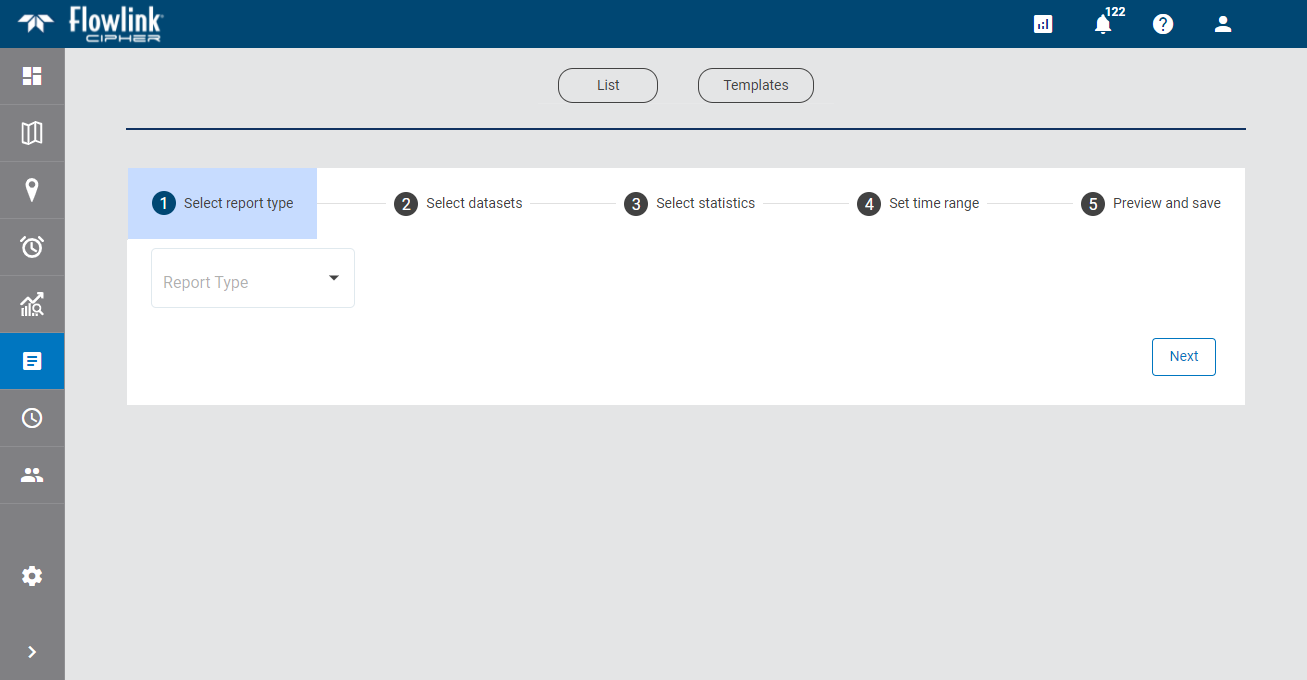
A Site Statistics Report is a statistical report for a site based on the datasets in the site.
Report Type
The first step in the process of creating a report is to select the report type. This determines the type of report that will be created and the fields that will be displayed in the other steps of the process.
1. Select Site Statistics from the drop-down list.
Site and Dataset Selection
Fields are displayed to select the site(s) for which statistics will be reported. More than one dataset can be included in a report, but they must be from the same site. When multiple datasets are selected, each will be included in a separate column in the report.
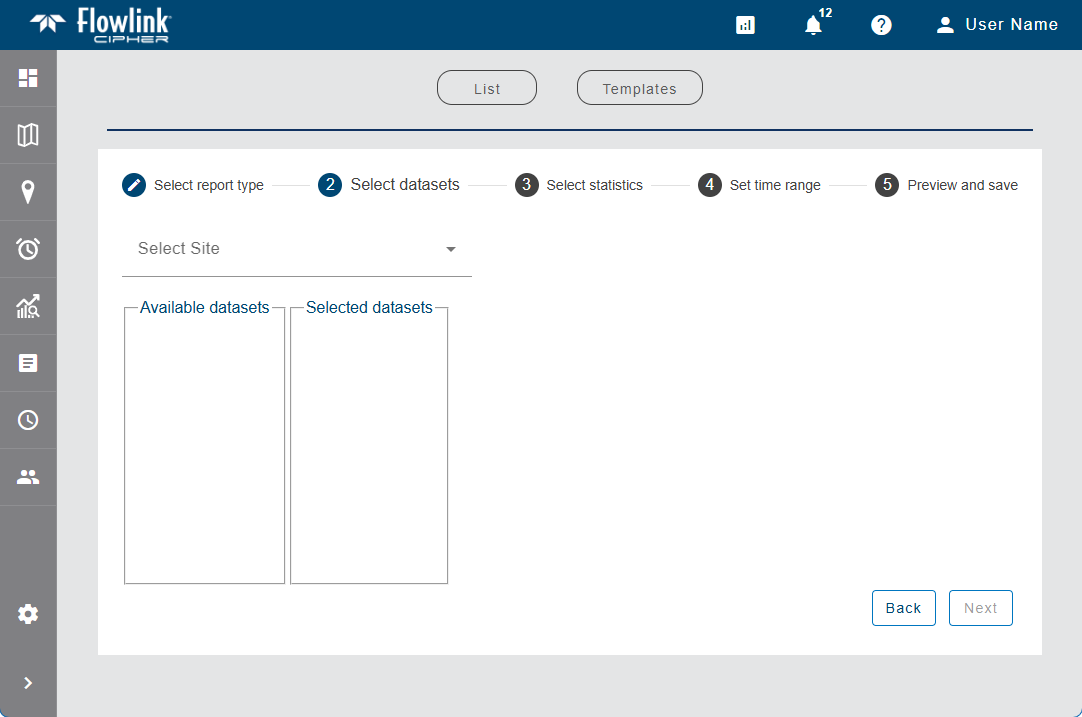
The Select Site field is used to select the site for the report. Clicking in the field displays a list of all sites available to the user. If the user has been assigned to a tenant, only sites in that tenant will be available. Similarly, if Preferred Tags have been specified in the Preferences tab of the current user profile, the list will display a "Tags applied" indicator and only sites assigned those tags will be included in the list. If the "Show inactive sites..." option has not been enabled in the Preferences tab, only active sites will be available. See Preferences for more information on these options.
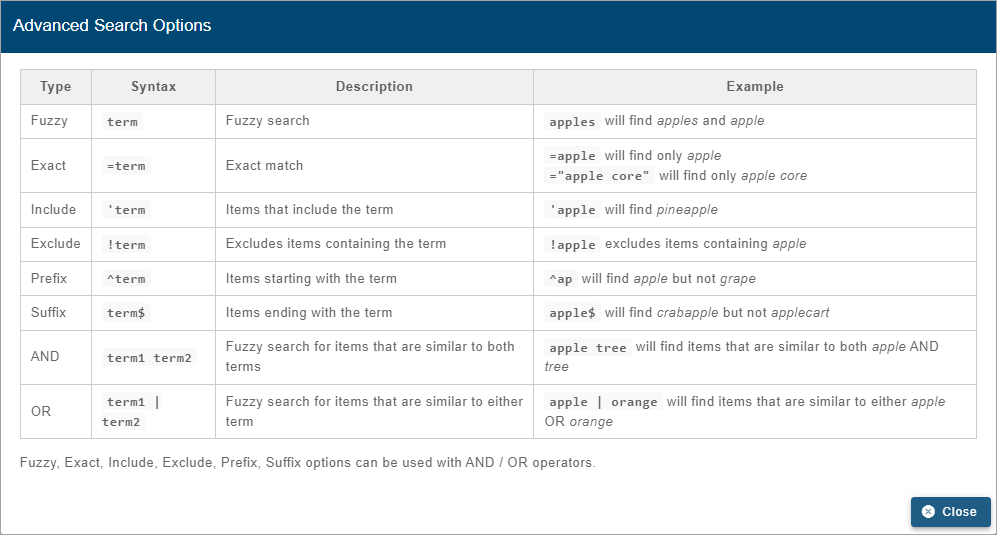
The list of sites can be filtered by entering text in the Search field at the top of the list. Only sites that match the text specified will be included in the list. Advanced Search characters can also be specified with the text to perform different types of searches, some more specific, some more general. Clicking the Advanced Search Options link below the Search field will display a chart of the possible search types and how to use them. The AND/OR operators can also be used in combination with the other Advanced Search options if needed.
A drop-down list beside the Search field can be used to filter the list even further by specifying the property in which to search for the matching text. Also, when a property is selected from the drop-down list, clicking in the Search field will display a drop-down list of possible values based on the selected property, allowing a value to be selected instead of entering it manually. When an option is selected, only sites with text in the selected property (tenant, tag, etc.) will be available.
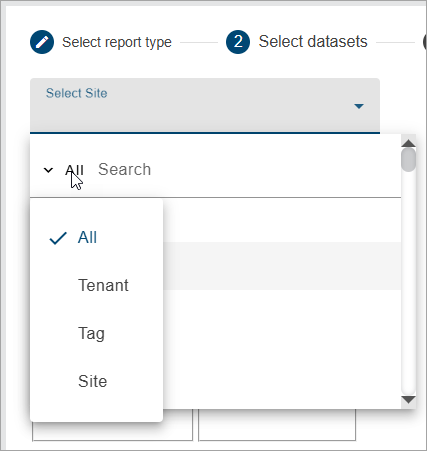
1. Select a site from the Select Site drop-down list.
Datasets can now be selected to include in the report. Clicking the +Add button will display a list of all datasets available for the selected site.
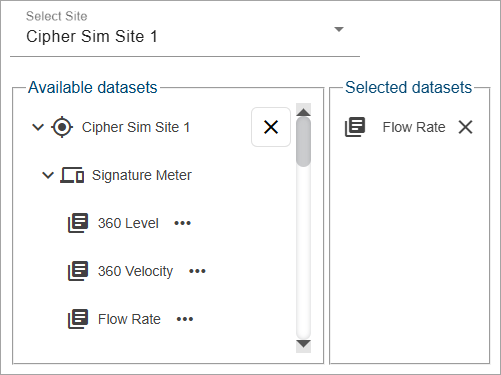
2. Click the plus button for each dataset to be included in the report.
3. Click outside the list to close it.
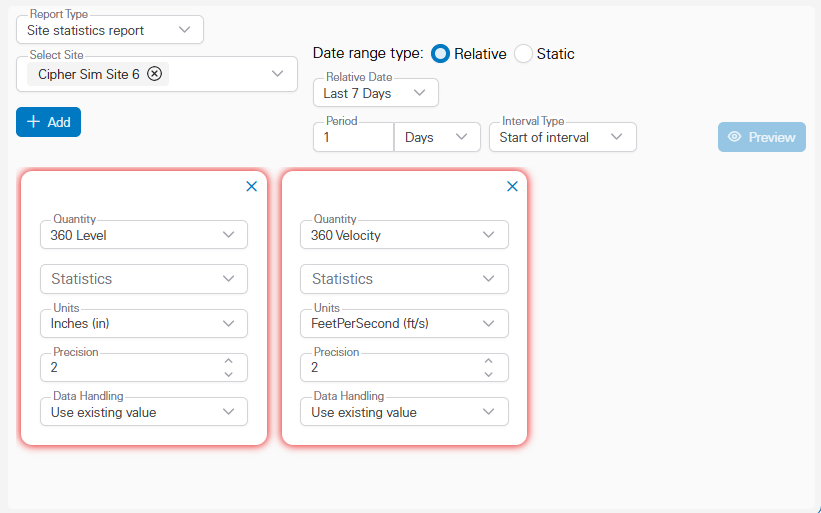
Each dataset is added to the screen, with a red border indicating that additional information must be defined.
Statistics Settings
Most of the fields are populated automatically based on the datasets added and the settings defined in User Preferences, see Preferences for more information. These settings will be used to perform the calculations for the statistics. The type of statistic to be calculated must be specified manually for each dataset in the report.
• Quantity: The dataset selected to be included in the report. This can be changed if a different dataset is needed.
• Statistics: The statistics that will be calculated and included in the report.
• Units: The unit of measure to use for the values in the report. This will default to the settings in the Preferences tab of the User Profile screen, but can be changed to any unit supported by the data type of the selected dataset. For example, a Temperature dataset will only have Celsius and Fahrenheit as possible values.
• Precision: The number of decimal places that will be included in the values in the report. The default is 2 digits to the right of the decimal point.
• Data Handling: The method that will be used to handle points in the report that have error codes associated with them. This setting overrides the Data Handling option in the Preferences tab of the User Profile screen that is applied to all datasets by default. There are four possible settings:
• Use existing value (default): The point retains its current value.
• Use zero reading: A zero reading will replace the value of the point value.
• Repeat last reading: The point value is updated to use the value of the previous point in the dataset.
• Interpolate: A value is interpolated for the point using the last non-zero, non-error values, before and after the error point(s).
1. Expand the Statistics list and click the check box of each statistic to be calculated in the report. Selecting the check box at the top of the list will select/deselect all options.
2. (Optional) Change the other settings for each of the datasets as needed.
Date Range and Interval
The Date Range fields are used to define the time range and sampling interval to be included in the report.
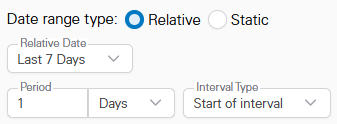
The time range can be defined as:
• a relative time period, such as This Week or This Month. This option also allows a custom number of days, month, years, etc. to be specified for the range.
• a static time period defined by start and end dates and times.
To define a static time range:
1. Select the Static option.
2. Click the Date Range field to display a calendar widget.
3. Click the desired start date and end date.
The widget is closed and the selected range is displayed in the field.
To define a relative time range:
1. Select the Relative option.
2. Select an option from the Relative Date drop-down list.
3. If Custom is selected, enter a numeric value and select a measure of time from the drop-down list.
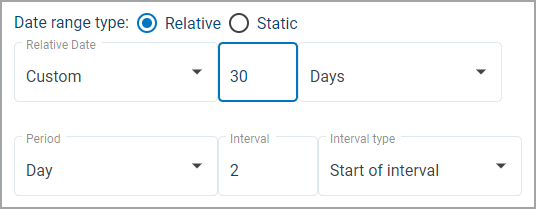
The sampling interval for the report is defined by selecting a time period and the frequency of that time period to include in the calculations for each entry in the report.
The Period field determines the length of time and the frequency of the selected time period to be included in each sample. As an example, with a Period of 2 Hours, calculations would be reported for all points in each 2 hour span within the specified time range.
The Interval type field determines whether sampling of data points starts at the beginning of an interval timestamp or the end. For example, a 1 hour interval would be reported as 13:00 - 13:59 for Start of interval, but 13:01-14:00 for End of interval, resulting in different points being analysed for the sample based on the type. A Start of... field is also provided for defining the start time of the interval. Depending on the type of range selected for the Relative Date, this will either be a single field for Start of the Day, or two fields for Start of the week and Start of the day.
• Start of the day allows the user to have the interval start at a time of day other than the default, which is controlled by the Graph settings in the Preferences tab of the User Profile page.
• Start of the week allows the user to have the interval start on a day other than the default, which is controlled by the Graph settings in the Preferences tab of the User Profile page.
4. Enter a value and select an option from the Period drop-down list.
5. Select the Interval type.
6. Specify Start of the day and/or Start of the week settings if needed.
Preview and Save
When all fields have been completed, the Preview button is enabled. This is used to preview the report and summary table of the selected data and then save it to the database and/or export it to PDF or CSV format. The Save to database and Download buttons will not enable until a preview has been generated. The preview allows the report settings to be adjusted if needed before creating the final report.
1. Click Preview to view the report.
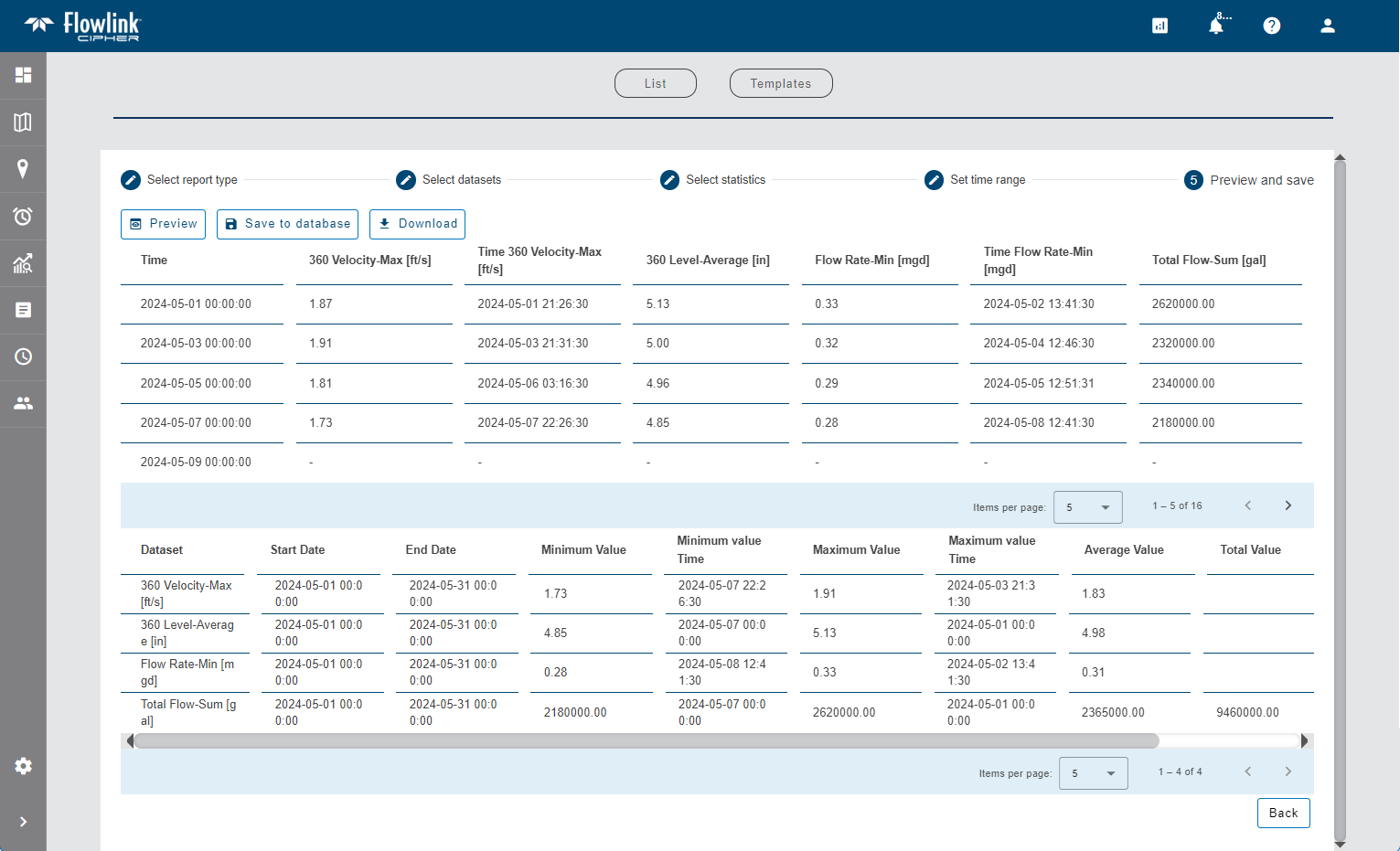
The report and summary table are displayed in the application. The first column of each row in the report is always the date and time of the beginning of the interval. After that, each column represents the statistics calculated for each dataset, with titles representing the dataset name and the statistic reported. If more than one statistic was calculated for a single dataset, a separate column is added for each statistic.
A summary table is shown below the report. This contains a summary of the statistics for each of the columns, including:
• the start and end dates for the data,
• the overall minimum value of the data in each dataset,
• the overall maximum value of the data in each dataset,
• the overall average value of the data in each dataset,
• the overall sum of the data (with appropriate calculation of sum for Flow Rate and Rainfall), and
• the number of points included in the statistics.
Note: Sum applied to Flow Rate is the total volume. Sum applied to Rainfall is the sum of the values during the interval.
If changes are needed in the report settings, click the Edit button to return to the settings page.
To save the report to the database:
1. Click Save.
A dialog box is displayed with the following options:
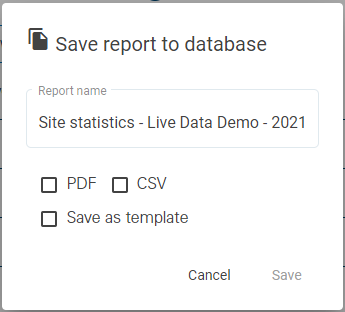
• Report name: The name to assign to the report. By default, this is populated with the report type, the site name and the creation timestamp.
• PDF: Save the report to the Cipher database in PDF format. This option makes the report available for other users to download and view at any time. The data itself is not saved with the report, only the report is stored.
• CSV: Save the report to the Cipher database in CSV format. This option makes the report available for other users to download and view at any time. The data itself is not saved with the report, only the report is stored.
• Save as template: Create a report template using the settings defined for this report. The template can then be used to create future reports. See Report Templates for more information on report templates. If this option is enabled, additional fields are added to the dialog box.
2. [Optional] Edit the Report name, if needed.
3. Click the check box for each output format to be saved.
4. [Optional] Click the Save as template check box.
Additional fields are added to the dialog box.
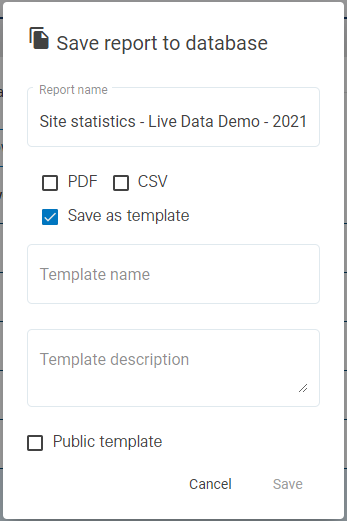
5. Enter a Template Name and Template Description.
6. Click the Public Template check box if the template will be available to other users.
7. Click Save.
A message will be displayed stating that the report was saved to the database in the selected format(s) and is now available in the list on the Reports List page.
If Save as template was selected, the template is now available from the Templates page.
To download the report to a file:
1. Click Download.
A dialog box is displayed with the following options:
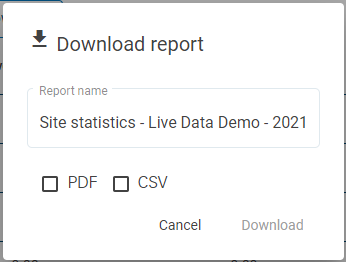
• Report name: The name to assign to the report. By default, this is populated with the report type, the site name and the creation timestamp. This will also be used in the file name of the resulting file.
• PDF: Download the report as a file in PDF format.
• CSV: Download the report as a file in CSV format.
2. [Optional] Edit the Report name, if needed.
3. Click the check box of each output format to be created.
4. Click Download.
A Save As dialog box is displayed.
5. Specify a name and location for each file format and click Save to export the files.